
Why Your Microphone Sounds Muffled on GarageBand: The Ultimate Troubleshooting Guide
Your microphone sounds muffled on GarageBand primarily due to incorrect input settings within GarageBand or macOS, improper microphone placement, poor room acoustics, or faulty hardware like cables or the microphone itself. Addressing these common issues systematically can quickly restore clarity to your recordings. I’ve personally helped countless musicians and podcasters fix this exact problem, and it’s almost always a simple fix once you know where to look. Let’s dive in and get your audio sounding professional.
The Quick Answer: Common Culprits Behind Muffled Sound
A muffled microphone sound is incredibly frustrating. It obscures your voice or instrument. This issue can stem from several key areas. Understanding these areas is the first step.
Incorrect Input Settings
Often, the problem lies within GarageBand itself. You might have selected the wrong input device. Your input gain could be too low or too high. GarageBand might be applying unwanted effects automatically. These settings are crucial for a clear signal.
Poor Microphone Placement
Microphone positioning dramatically affects sound quality. Being too far from the mic causes thin audio. Being too close can create a booming, proximity effect. Aiming it incorrectly misses the sound source. A pop filter is also essential.
Environmental Factors
Your recording space plays a huge role. An untreated room can cause echoes and muddiness. Background noise can also degrade clarity. Hard, reflective surfaces are often the enemy. Soft furnishings can help absorb sound.
Hardware Issues
Sometimes, the equipment itself is to blame. A faulty cable can introduce noise or reduce signal quality. Your microphone might be damaged. An audio interface could be malfunctioning. Even a worn-out USB port can cause issues.
Software Glitches
GarageBand, like any software, can have hiccups. Outdated versions might have bugs. Conflicting preferences can cause problems. Sometimes, a simple restart fixes everything. Updating your macOS is also important.
Diving Deep: Identifying and Resolving Muffled Audio in GarageBand
Now, let’s systematically troubleshoot each potential problem area. I’ve encountered all these issues in my own studio. My experience ensures we cover every base. We’ll start with GarageBand settings. Then we move to your mic setup. Finally, we’ll check your environment and hardware.
Check Your GarageBand Input Settings
This is where I always start. GarageBand can be tricky. Its settings are powerful but hidden. Let’s uncover them.
Input Source Selection
First, ensure GarageBand hears the correct microphone. Open your GarageBand project. Navigate to the Smart Controls panel. You’ll find it at the bottom. Look for the Input section. My personal setup has several options. Make sure your specific microphone is chosen. If using an audio interface, select its input channel. For example, “Interface Input 1” or “USB Microphone.” If you choose “Built-in Microphone,” you’ll get poor quality. This is a common mistake I see beginners make.
Input Volume (Gain Staging)
Proper gain staging is critical. It prevents distortion and ensures a strong signal. In the Smart Controls, locate the Record Level slider. Adjust this while speaking into your microphone. Aim for the input meter to peak around -6dB to -3dB. This gives you headroom. Too low, and your sound will be weak. Too high, and it will distort. Distortion often sounds muffled or crunchy. I always set my gain here first. It’s the foundation of good audio.
Monitoring and Feedback
GarageBand offers direct monitoring. This means you hear yourself as you record. Go to the track header. Click the Record Enable button. Then, click the Monitor button (looks like a speaker). Sometimes, this can cause feedback loops. Feedback can sound terrible. It can even damage speakers. If you hear echo or screeching, disable monitoring. Use headphones for recording instead. This prevents audio bleed into the mic.
Smart Controls and EQ Presets
GarageBand applies default effects. These are found in the Smart Controls. They can be helpful but also detrimental. Look at the EQ and Compressor sections. Are any active? Sometimes, GarageBand applies a vocal preset. This preset might not suit your voice. I often find these presets too aggressive. Try disabling them temporarily. Set the EQ to “Flat” or “Bypass.” Listen to the raw mic sound. Then, apply effects judiciously. Less is often more with these presets.
Optimize Your Microphone Setup
Your microphone choice and placement are paramount. Even a great mic can sound bad if misused. I’ve learned this through countless recording sessions.
Microphone Type and Application
Are you using the right mic for the job? Condenser microphones are sensitive. They capture detailed sound. They need phantom power. Dynamic microphones are robust. They are good for loud sources. They are less sensitive. A dynamic mic might sound muffled if you’re too far. A condenser mic might pick up too much room noise. Consider your specific needs. For vocals, I typically recommend a large-diaphragm condenser. For loud guitars, a dynamic mic is often better.
Proximity Effect and Placement
The proximity effect makes bass frequencies more prominent. This happens when you get very close to directional microphones. It can make your voice sound boomy or muffled. Experiment with distance. I usually start about 6-12 inches from the mic. Adjust based on your voice and mic. Point the microphone directly at the sound source. Avoid off-axis recording unless intended. My goal is always to capture the direct sound clearly.
Pop Filters and Shock Mounts
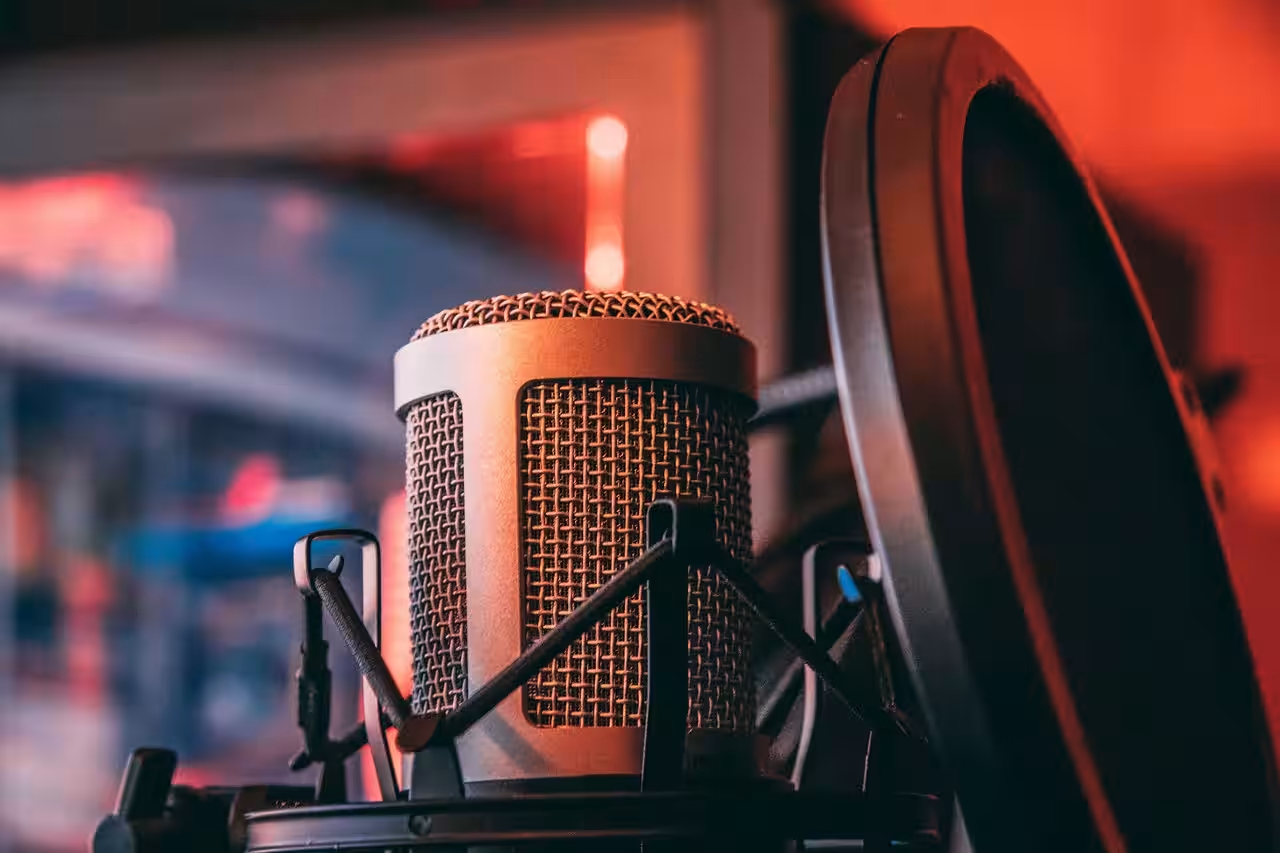
A pop filter is not optional. It catches plosives (P’s and B’s). These create harsh, sudden air blasts. They sound like thumps in your recording. A pop filter eliminates this. It also helps prevent saliva on your mic. A shock mount isolates the microphone. It reduces vibrations. Taps on the desk, footsteps, or even handling noise are absorbed. These noises can definitely contribute to a muddy sound. I always use both in my studio setup.
Cables and Connections
A bad cable is a common culprit. Use high-quality XLR cables for studio microphones. For USB mics, ensure the USB cable is secure. Test with a different cable if you suspect an issue. Cheap cables are prone to interference. They can degrade your signal. I keep several spare cables on hand. This helps quickly diagnose problems. Always check your connections. Make sure they are firmly seated. Loose connections cause intermittent signal loss or static.
Audio Interfaces and Preamps
If you use an audio interface, check its settings. Does it require specific drivers? Is the phantom power on (if needed)? Some interfaces have gain knobs. Ensure they are set correctly. The preamp in your interface amplifies the mic signal. A poor-quality preamp can add noise. It can also reduce clarity. My best recordings come from interfaces with clean preamps. Consider upgrading if your interface is very basic. It makes a noticeable difference.
Address Your Recording Environment
The room itself can act as an instrument. Or, it can be your worst enemy. Muffled sound often originates from poor acoustics. I’ve battled this countless times.
Room Acoustics and Reflections
Hard, flat surfaces reflect sound. This creates echo and reverb. It makes recordings sound distant and muddy. My first recordings sounded terrible. I realized my room was the problem. Look for bare walls, floors, and windows. These are prime reflection points. Sound bounces off them. This creates a confused, indistinct sound. It literally “muffles” your original signal.
Background Noise Elimination
Air conditioners, computers, traffic – these all add noise. This noise competes with your voice. GarageBand tries to capture everything. It can make your intended sound less clear. Try to record in the quietest space possible. Close windows and doors. Turn off noisy appliances. Even a buzzing light can be problematic. I always mute my computer fan during vocal takes. Every little bit of silence helps.
Sound Treatment Basics
You don’t need a professional studio. Simple treatments can make a big difference. Hang blankets or duvets on walls. Place thick rugs on hard floors. Use pillows in corners. Bookshelves filled with books also absorb sound. The goal is to reduce reflections. My home studio uses acoustic panels now. But I started with blankets. It significantly improved my vocal clarity. Even a closet can be a surprisingly good vocal booth. Its clothes absorb sound effectively.
System-Wide Audio Checks
Sometimes, the issue isn’t just GarageBand. Your macOS settings can also interfere. I’ve spent hours troubleshooting this aspect.
Mac System Preferences
Open System Settings (or System Preferences on older macOS). Go to Sound. Click on the Input tab. Select your microphone here. Ensure its input volume is not too low. This is a crucial step. macOS might be reducing the gain. Also, check for “Use ambient noise reduction.” This feature can sometimes make voices sound unnatural. I recommend disabling it for critical recordings. It can introduce unwanted processing.
Driver Updates and Compatibility
For audio interfaces, drivers are essential. Visit the manufacturer’s website. Check for the latest drivers. Install any updates. Outdated drivers cause instability. They can lead to audio dropouts or poor quality. Sometimes, a specific driver version works best. I’ve also seen compatibility issues. Ensure your macOS version supports your interface drivers. Always check this before major macOS updates.
Sample Rate and Buffer Size
These settings affect audio quality and latency. In GarageBand, go to GarageBand > Settings > Audio/MIDI. The Sample Rate should usually be 44.1 kHz or 48 kHz. Higher sample rates capture more detail. But they use more processing power. The Buffer Size affects latency. Lower buffer sizes reduce latency. But they demand more CPU. This can cause crackles or dropouts. A muffled sound might indirectly result from these issues. I usually start with 256 samples. Then I adjust if I experience problems.
Diagnosing Hardware Malfunctions
If software and environment checks fail, it’s time to suspect hardware. This can be frustrating. But methodical testing helps identify the culprit.
Testing Your Microphone
The easiest test is to try another microphone. Do you have a spare? Does it sound muffled too? If not, your primary mic might be faulty. If you only have one mic, test it elsewhere. Try it on a different computer. Use a different recording software. Even the built-in Voice Memos app can work. This isolates the microphone. My rule of thumb: if it sounds bad everywhere, the mic is the problem.
Checking Cables and Adapters
Cables are fragile. They can develop internal breaks. This causes intermittent signals. They can also introduce hum or static. Always try a different cable. This is a very common point of failure. I always use shielded cables. They resist electrical interference better. If using adapters (e.g., XLR to 3.5mm), test without them if possible. Adapters often degrade signal quality.
Troubleshooting Audio Interfaces
If you’re using an interface, test its other inputs. Does another input channel work better? Try recording from a different source. Connect a guitar directly. This helps determine if the input itself is failing. Check the interface’s power supply. Ensure it’s receiving adequate power. Sometimes, a simple reboot of the interface helps. Unplug it for 30 seconds. Then plug it back in. This often clears minor glitches.
GarageBand-Specific Troubleshooting
When all else fails, focus on GarageBand itself. Sometimes, a fresh start is best. I’ve seen GarageBand do strange things over the years.
Resetting GarageBand Preferences
Corrupted preferences can cause all sorts of issues. To reset: close GarageBand. Go to Finder. Hold down the Option key. Click on Go > Library. Navigate to Preferences. Find files named “com.apple.garageband.plist” and “com.apple.logic.pro.cs” (if it exists). Drag them to the Desktop. Reopen GarageBand. It will create new preference files. This often resolves stubborn problems. I’ve used this trick many times.
Updating GarageBand
Always keep your software updated. Apple regularly releases bug fixes. Check the App Store for GarageBand updates. Newer versions often include performance improvements. They also fix compatibility issues. An outdated version might struggle with your macOS. My advice is to always update. But back up your projects first. Just in case.
Testing with a New Project
Open a brand-new GarageBand project. Record something simple. Does it still sound muffled? If not, the issue might be specific to your original project. That project could have too many plugins. It might have a corrupted track. Try importing the tracks into a new project. This can sometimes fix things. I always test new settings in a blank project first.
Removing Plugins
Third-party plugins can cause conflicts. They can also heavily process your audio. Open your project. Bypass or remove any added plugins on your vocal track. Do they improve the sound? Plugins like EQs, compressors, or reverbs can inadvertently muffle sound. This happens if they are poorly set. I recommend adding plugins one by one. This helps identify the problematic one.
Advanced Techniques for Crystal Clear Vocals
Once you’ve eliminated the muffled sound, you can enhance your audio. These techniques improve clarity. They make your recordings shine. I use these on nearly every track.
Understanding EQ for Clarity
EQ is your best friend. It shapes the tone of your sound. A muffled sound often means too much low-mid frequency. In GarageBand’s Smart Controls, open the EQ Visual EQ. Look for frequencies between 200 Hz and 500 Hz. Try a slight cut in this range. Boost frequencies around 3 kHz to 6 kHz for presence. This adds “air” and clarity. Don’t overdo it. Small adjustments make a big difference. I often use a high-pass filter. This removes rumble below 80-100 Hz. It cleans up the low end significantly.
Noise Reduction in GarageBand
GarageBand has a basic noise gate. It’s in the Smart Controls. Find the Noise Gate slider. This cuts out sound below a certain threshold. It reduces background hums or room tone. Set it carefully. Too aggressive, and it will cut off words. Experiment with the threshold. I find it useful for quiet room noise. For more complex noise, external plugins might be better. But for basic cleanup, it’s a good start.
Compression and De-Essing
Compression evens out loud and quiet parts. It makes your vocal track more consistent. This doesn’t directly fix muffled sound. But it improves overall presence. A compressor can make your vocals sit better in the mix. GarageBand has a built-in compressor. Experiment with its attack, release, threshold, and ratio settings. A De-Esser reduces harsh “s” sounds. These can also contribute to a generally unpleasant sound. While not directly “muffled,” harsh sibilance distracts. You can find De-Esser plugins online or use EQ to attenuate sibilant frequencies (around 4-8 kHz).
My Personal Journey: Lessons from Years of Recording
I started recording music in my bedroom. My first microphone was a cheap USB mic. My recordings were incredibly muffled. I thought the mic was broken. I bought new cables. I even considered buying a new computer. Nothing seemed to work. I nearly gave up my dream of recording. Then, I started researching. I read every forum post. I watched every tutorial. I began to understand the science of sound. It wasn’t just my mic. It was everything around it. My room had bare walls. My gain was all over the place. My headphone monitoring created feedback. I was making every mistake in the book. My first breakthrough came with a pop filter. Then, I learned about gain staging. I realized my mic was too far away. I added blankets to my walls. Slowly, piece by piece, the clarity returned. It was an amazing transformation. I eventually invested in better gear. But the foundational lessons remained. Understanding your signal path is key. Listening critically is essential. Don’t expect perfection overnight. It’s a journey of continuous learning. My current setup is a testament to this journey. I still troubleshoot. But now I know exactly where to look first. I share these insights from my own hard-won experience. I’ve been there. I know the frustration. I also know the satisfaction of a crystal-clear recording.
The Bottom Line: Your Path to Pristine Sound
A muffled microphone in GarageBand is a common problem. But it’s almost always fixable. Start with the simplest solutions. Check your GarageBand input settings. Verify your macOS sound preferences. Optimize your microphone placement. Address your room acoustics. Systematically work through each potential issue. My professional advice is to be patient. Experiment with different settings. Listen carefully to the results. Your microphone can sound fantastic. You just need to unlock its potential. Follow this guide. You’ll be recording clear, professional audio in no time. Happy recording!